

Some links on this page are affiliate links. If you buy through one, Planet 3DP earns a small commission at no extra cost to you. It never changes what we recommend. How this works. As an Amazon Associate I earn from qualifying purchases.
This Snapmaker U1 review is Nick’s own verdict, from three videos and months of printing on the machine. He also owns a Bambu Lab H2C, the printer most people weigh it against. The short version: the U1 is the multicolor printer he’d put on your list if multicolor is a big part of your printing. The H2C is the one he reaches for when four colors isn’t enough.
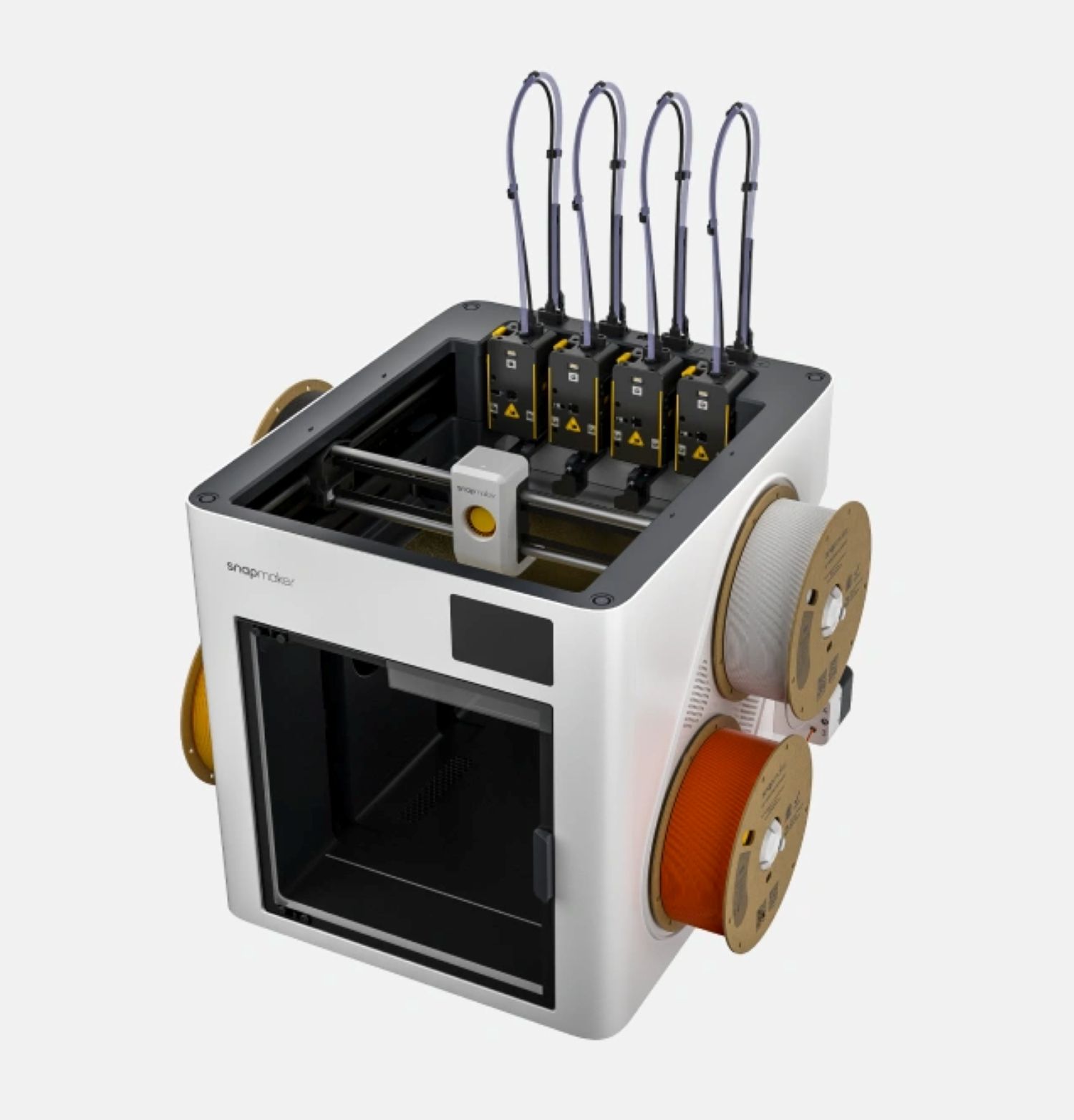
The Snapmaker U1 is a four toolhead printer. Each head holds its own filament, so a color change is a tool swap, not a purge. The Bambu Lab H2C swaps whole hotends instead. Both are built to cut the waste that multicolor printing usually throws away. Everything below comes from Nick’s three videos on these machines, with the moment linked, plus the makers’ own spec pages.
- Nick's verdict
- If multicolor printing is a big part of your plan, the U1 should be on your list. Print quality holds up, setup was simple, and the open firmware turned a fault into a 5 minute fix.
- The real limit
- Four colors. Nick’s Mario prints need seven, and only his H2C does that.
- Price
- 749 dollars at Snapmaker’s US store (999 before the markdown).
- Against the H2C
- The H2C is 2,199 dollars as the AMS Combo, with seven nozzles, a heated chamber and a bigger bed. Color changes are faster on the U1, by Nick’s account.
- Nick uses it for
- Multicolor PLA and PETG, decor and gifts. Not engineering filament.
- Worth adding
- A top cover. Nick says the toolhead swaps are loud enough to hear from bed.
Store prices read by the Planet 3DP price tracker on October 26, 2026, US. Nick’s words from his U1 follow up video and his H2C review.
Watch Nick’s Snapmaker U1 verdict
- 0:00Two days of printing gone
- 1:00Why open source matters
- 1:15The false power off error explained
- 3:09The 5 minute fix
- 4:22Three printers, one circuit
- 5:02Fixing the noise
- 6:15Your printer, your choice
- 7:31Open firmware and the Innovation Fund
- 8:04Snapmaker U1 vs Bambu H2C
- 10:02Who the U1 is actually for
Setting one up from the box? Nick’s U1 unboxing and setup video covers every step, from the tape to the first print.
Setup and first prints
Nick’s first warning is the tape. There’s a lot of it, so take your time and get all of it out before you start. Snapmaker packs a box of four small spools in red, white, black and yellow. Nick says they’re 250 g each, and it was the first time he’d unboxed filament from inside a printer.
The toolheads are the one step that trips people up. One head has a yellow sticker and goes on first. Before the other three, check that each bracket shows its red sticker. In the setup video at 4:44 Nick shows what a missed alignment hole looks like, and the fix is to line it up and try again.
Once it’s on your network and paired with the Snapmaker app, calibration runs on its own and takes about 20 minutes. The first print is a dragon, and Nick suggests turning on dynamic flow and the timelapse. In his follow up video he sums it up plainly: setup was simple, with zero hiccups.
The error that nearly ended a two day print
This is the part of owning a U1 that a first look can’t show. Nick was printing a detailed four color falcon, a two day job. About 75% of the way in the printer stopped with an anomaly error. The message said the main board had detected a power off signal and shut down for protection.
His power looked fine. The same outlet has run five of his other printers at once with zero issues. He resumed, and the second attempt died at about 15%.
So he put the error code into Snapmaker’s own wiki and found a page for that exact fault, titled false power off signal triggered. Step three says what to do if it keeps happening. Turn on Advanced Mode on the printer, then raise the power loss detection threshold in the config file. You reach it in a browser at the printer’s IP address.
The default is 0.022 seconds and the wiki allows up to 0.05. Nick set his to 0.04, saved, rebooted and reloaded the print. The falcon finished. Then he ran two more printers on the same circuit, three at once, with no errors. The whole fix took about five minutes.
Got the same error? Snapmaker’s wiki page for the false power off signal error walks through the diagnosis first. The threshold change is its step three.
How loud is the Snapmaker U1?
Louder than a single head printer. The toolhead changes are the noisy part. Nick could hear them from the next room, and from bed. Next to his H2C, though, he calls the noise pretty in line.
His fix was a third party top, the BIQU PopCap. It’s a thick clear acrylic lid with a magnetic door, so you can reach in without opening the whole thing, and Nick says it cuts the sound by about 15 decibels. He thinks a top should come standard with the U1, because most people won’t know they need one until it’s running in their home.
Snapmaker sells its own Top Cover too. Its store page says the cover encloses the printer and is what opens up ABS, ASA, PET, nylon and PC. Without it, Snapmaker lists PLA, PETG, TPU, PVA and PCTG.
Snapmaker U1 vs Bambu Lab H2C
Nick owns both, and he’s clear they’re different machines. The U1 runs four independent toolheads, each loaded with its own filament and ready to go. A swap takes about five seconds, with no unloading or reloading between colors. The H2C keeps one toolhead and swaps whole hotends out of a changer on the side. Both get the job done, just with different designs.
Color count is where the U1 takes the hit. It tops out at four. Four colors came out fine on his falcon and toucan, but his Mario prints need seven, and that’s where the H2C earns its keep. Bambu Lab’s own page says the H2C has seven nozzles in all, six swappable hotends plus the fixed one.
What the U1 gives back is speed. Nick says color changes happen faster than on the H2C, and for the four color prints he runs on it, he calls that a pretty big difference.
The H2C is the stronger machine for engineering work. Bambu Lab lists 350°C nozzles and a 65°C actively heated chamber. Nick uses the U1 for multicolor PLA and PETG, the decor and gift projects, and doesn’t run engineering filament on it.
Specs side by side
| Snapmaker U1 | Bambu Lab H2C | Where it comes from | |
|---|---|---|---|
| Store price | 749 dollars (999 before the markdown) | 2,199 dollars, AMS Combo | Price tracker |
| How it changes color | Swaps between 4 toolheads | Swaps between 6 hotends, plus 1 fixed nozzle | Maker pages |
| Color change | About 5 seconds per swap (Snapmaker) | 8 second induction heating (Bambu Lab) | Maker pages |
| Most colors in one print | 4 loaded filaments | 7 nozzles, more filaments through extra AMS units | Maker pages |
| Build volume | 270 by 270 by 270 mm | 330 by 320 by 325 mm | Maker pages |
| Max nozzle temperature | 300°C | 350°C | Maker pages |
| Enclosure | Open top, Top Cover optional | Enclosed, 65°C heated chamber | Maker pages |
| Waste claim | Up to 85% less waste (Snapmaker) | Minimal purge waste (Bambu Lab) | Maker pages |
| Slicer | Snapmaker Orca or OrcaSlicer | Bambu Studio | Maker pages, Nick’s H2C review |
| Nick uses it for | Multicolor PLA and PETG, decor and gifts | Seven color prints and waste he can measure | Nick’s videos |
What the H2C saved, measured
Nick put real numbers on the H2C in his review. Each one is against the same print set up for his H2S, a single hotend Bambu that purges on every change. The Borderlands Ripper mask took 2 days 5 hours on the H2C. The slicer estimated 4 days 1 hour for the H2S. The H2C saved 853 g of filament on that one print, close to a full roll.
The hand painted witch, a model he painted for his daughter, had over 1,500 color changes and saved 504 g. A small Grinch dog saved 227 g. That’s 1,584 g across three prints, about one and a half rolls. At around 15 dollars a roll, Nick puts it at roughly 22 dollars of filament on just those three.
He also logged over 5,000 hotend changes with no mispicks and no maintenance on the changer.
Nick hasn’t weighed the U1’s waste on camera, so there’s no U1 figure here to set beside these. Snapmaker’s own claim is up to 85% less waste than a printer that purges. In the U1 video’s description, Nick describes it as having no purge waste between colors.
| Nick’s H2C print | What it involved | Filament saved |
|---|---|---|
| Borderlands Ripper mask | The first print on the machine. 2 days 5 hours, against 4 days 1 hour estimated for the H2S | 853 g |
| Hand painted witch | Over 1,500 color changes | 504 g |
| Grinch dog reindeer | A small print at the default 0.2 mm layer height | 227 g |
| All three | About one and a half rolls | 1,584 g |
Open firmware, and a way past four colors
The fix only worked because the U1 is open. Snapmaker documents the firmware, lets you edit the config, and has published the U1 firmware source on GitHub. Nick isn’t a Klipper expert and doesn’t write firmware. He edited one setting because the maker gave him access.
That openness is also chipping at the four color limit. Nick points to Snapmaker’s Innovation Fund, a 150,000 dollar pot for community developers building software, hardware and workflows for the U1. One project it backs is Full Spectrum, which mixes the four loaded filaments layer by layer into over 100 in between colors. Snapmaker’s slicer page lists Full Spectrum in Snapmaker Orca from version 2.3.3.
Nick also flags the Snapmaker model marketplace as still finding its feet, though he sees Snapmaker putting real effort into it. Open hardware and right to repair come up in the same video, and the laws behind that debate are on our 3D printing laws page.
Can the Snapmaker U1 print MakerWorld files?
Short answer: yes. Nick has printed a MakerWorld model on his U1. You slice it in Snapmaker Orca or OrcaSlicer first.
Nick’s bonus print in the setup video, at 11:05, is a Hercules beetle he downloaded from MakerWorld, and the model link is in that video’s description.
The U1 slices in Snapmaker Orca or OrcaSlicer, by Snapmaker’s own spec list, not in Bambu Studio. A file set up for a Bambu printer gets sliced again for the U1, and a model painted in more than four colors has to fit four toolheads.
Who should buy the U1, and who should buy the H2C
Buy the Snapmaker U1 if multicolor printing is a big part of your plan and four colors covers what you make. It’s Nick’s pick for PLA and PETG decor and gifts, the color changes are quick, and the open firmware means you can fix things yourself. At 749 dollars it costs about a third of the H2C. Budget for a top if it shares your living space.
Buy the Bambu Lab H2C if you print models with more than four colors, if you want engineering materials in an enclosed, heated chamber, or if waste is costing you real money. Bambu Lab’s Black Friday page lists the H2C AMS Combo at 1,899 dollars from October 27 to December 1, down from 2,199. Our Bambu Lab Black Friday page tracks it.
Buy neither as a first printer. In his beginner printers video, Nick says he’d never suggest a zero waste machine like the H2C or the Snapmaker U1 to a beginner. Start with something simpler from our beginner picks, or see where both sit among our best 3D printers.
Already own an H2C? Nick’s one page H2C maintenance checklist keeps the changer and hotends in shape.
Get the H2C checklistSnapmaker U1 questions
Is the Snapmaker U1 worth it?
Nick’s answer is yes if multicolor printing is a big part of your plan. Print quality holds up, setup was simple, and the open firmware let him fix a fault in five minutes. The real limit is four colors. It was 749 dollars at Snapmaker’s US store on October 26, 2026.
Snapmaker U1 or Bambu Lab H2C, which should I buy?
The U1 if four colors covers your prints and you mostly run PLA and PETG. The H2C if you need seven colors or engineering filaments in a heated chamber. Nick owns both and uses the U1 for decor and gifts and the H2C for his seven color Mario prints.
Does the Snapmaker U1 have purge waste?
Far less than a printer that purges on every color change. Snapmaker claims up to 85% less waste, and a waste collector still ships in the box. Nick describes it as having no purge waste between colors, but he hasn’t weighed its waste on camera.
Can the Snapmaker U1 print MakerWorld files?
Yes. Nick printed a Hercules beetle from MakerWorld on his U1 in his setup video. The U1 slices in Snapmaker Orca or OrcaSlicer, so a Bambu file is sliced again for the U1, and the colors have to fit its four toolheads.
How loud is the Snapmaker U1?
The toolhead changes are loud enough that Nick heard them from the next room and from bed. He says it’s in line with his H2C. A BIQU PopCap acrylic top cut the sound by about 15 decibels for him.
How do you fix the U1 false power off signal error?
Follow Snapmaker’s wiki page for that error. If it keeps happening, turn on Advanced Mode and raise the power loss detection threshold from its 0.022 second default. The wiki allows up to 0.05. Nick set 0.04 and his two day print finished.
How much filament does the Bambu Lab H2C save?
In Nick’s review it saved 853 g on a Ripper mask, 504 g on a witch with over 1,500 color changes and 227 g on a Grinch dog, 1,584 g in all against his H2S.
- Planet 3DP video: Open Source 3D Printer Saves the Print (July 2026), the U1 fault, fix, noise and U1 vs H2C (checked October 26, 2026)
- Planet 3DP video: Snapmaker U1 Review, Unboxing, Setup and First Prints (May 2026) (checked October 26, 2026)
- Planet 3DP video: Honest Bambu Lab H2C Review (November 2025), print times and filament saved (checked October 26, 2026)
- Planet 3DP video: the best beginner 3D printers side by side (August 2026) (checked October 26, 2026)
- Snapmaker US store: Snapmaker U1 specs, waste claim, box contents and price (checked October 26, 2026)
- Snapmaker Wiki: U1 false power off signal triggered (checked October 26, 2026)
- Snapmaker: Snapmaker Orca slicer and Full Spectrum (checked October 26, 2026)
- Bambu Lab US store: H2C specs, purge claim notes and price (checked October 26, 2026)
- Bambu Lab US store: Black Friday sale page, H2C AMS Combo price and dates (checked October 26, 2026)
- Planet 3DP price tracker: store prices for both printers, read on each maker's own US store (checked October 26, 2026)

Host of Planet 3DP. I have been 3D printing for over four years, with tens of thousands of print hours across Bambu Lab, Anycubic, Creality, Elegoo and Snapmaker machines. I own both printers on this page. Planet 3DP on YouTube.
Last checked October 26, 2026.