

Some links on this page are affiliate links. If you buy through one, Planet 3DP earns a small commission at no extra cost to you. It never changes what we recommend. How this works.
This Bambu Studio tutorial skips the install and goes straight to the settings that change your prints. Most guides stop once the printer is paired. This one starts there, with the handful of settings Nick uses on every print and the exact moment in his videos where he shows each one.
The four videos on this page are among the most watched on the Planet 3DP channel, with over 1.4 million views between them. This page pulls them into one reference, with every menu path and value tied to the video that shows it or to Bambu Lab’s own wiki.
Menus move between versions, so each section says which version the video was made on. Jump to a topic: the six settings, supports, smooth walls, glass smooth tops, text, modifiers, large models and what’s new.
- Turn on first
- Advanced mode. Most of the settings below are hidden without it.
- Cleaner walls
- Order of walls set to Outer/Inner, and a slower outer wall speed.
- Strength
- Wall loops first, then sparse infill density and pattern.
- Supports
- Tree supports, support critical regions only, a bigger initial layer expansion and a top Z distance of about 0.23 to 0.25 mm.
- Smooth curves
- Variable layer height instead of a smaller layer height for the whole model.
- Smooth tops
- Ironing, but only after you calibrate your own filament.
- Current version
- 2.8.2.61 is the newest public release and 2.8.4 the newest beta, per Bambu Lab’s GitHub page, checked October 26, 2026.
From Nick’s videos (2024 to 2025) and the Bambu Lab Wiki. Moments and links in each section.
Before you touch a setting
Start with the basics Nick sets up at the top of his six settings video. They take a minute and they stop a lot of confusion later.
- Turn on Advanced mode. It shows the full list of process settings (0:50). Nick admits it looks like a lot. You’ll end up ignoring most of it.
- Check the printer and plate. Pick your printer in the left menu. Nick suggests staying on the textured PEI plate that ships with the printer until you have more experience (1:36).
- Press Sync info. It pulls the nozzle and AMS details from the printer. On a stock machine the nozzle should read 0.4 mm with standard flow (2:07).
- Use the search bar. Type part of a setting name and Bambu Studio jumps to it (5:53). This is the fastest way around a menu that moved in a new version.
- Watch for orange. A setting you change turns orange. Click the orange icon next to it to go back to the default (8:00).
Which version each video uses
| Video | Published | Bambu Studio version | Length |
|---|---|---|---|
| The 6 Most Important Settings | Oct 23, 2025 | 2.3 (named in the video) | 19:12 |
| 5 Easy Settings for Smoother Prints | Dec 6, 2025 | Not named. 2.4.0 was the public release then | 9:52 |
| How To Get Glass Smooth 3D Prints | Oct 18, 2025 | Not named. 2.3.0 was the public release then | 7:23 |
| Complete Beginner Tutorial | Jun 13, 2024 | Not named. 1.9.2 was the public release then | 1:10:43 |
Watch: the 6 most important settings (Bambu Studio 2.3)
- 0:00Intro: the settings wall
- 0:50Turn on Advanced mode
- 1:05Printer setup, plate and sync
- 2:30Essential toolbar tools
- 6:40Setting 1: Order of walls
- 7:20Settings 2 to 4: Wall loops, infill density and pattern
- 12:22Setting 5: Outer wall speed
- 13:02Setting 6: Supports, tree vs normal, Z distance
- 17:30Save your presets and slice
- 18:40Wrap up
Bambu Studio tutorial: the six settings that matter most
Nick’s point in this video is simple. A new user only needs to worry about around six settings. Everything else can wait. Here they are in the order he covers them.
1. Order of walls
This is near the bottom of the Quality tab. By default the printer lays the inner walls first and the outer wall last. Switching to Outer/Inner prints the outer wall first, so nothing pushes on it while it goes down (7:29).
Nick says that gives smoother lines and cleaner curves, most of all on round or detailed parts. He makes the same case in his smoother prints video with a simple picture: draw the outline first and it’s easier to stay neat when you fill in the middle (1:55).
2. Wall loops
Wall loops are the shells that wrap around the part. More loops make a stiffer part. Nick says most prints do well with two or three. For parts that take a hit or get glued into a big build, he goes higher, up to six (8:33).
His example is a Minecraft toy for his daughter. Two walls could break on a hard floor, so he used four (10:10).
3. Sparse infill density
This is how much plastic goes inside the part. Nick’s rule of thumb: 10 to 15% for light decor, 20 to 25% when you need strength (9:55). With four walls on that toy, he dropped the infill to around 8 to 10% to keep it light. His habit over the last year has been more walls and less infill.
4. Sparse infill pattern
Nick’s two go to patterns are gyroid and triangles (10:57). Gyroid is strong in every direction. Triangles are strong and print faster. He says triangles can take a full week off a 150 part skull build.
The catch: he never uses triangles on tall parts or on a bed slinger like the A1. He guesses 3 to 5% of those prints failed when the nozzle caught the infill and knocked a support loose. On CoreXY machines like the P1S and H2S he rarely sees it. If you don’t want to think about it, use gyroid.
5. Outer wall speed
Speed is an advanced tab, but one setting is worth knowing. If you see a quality problem, lower the outer wall speed first (12:22). In his smoother prints video Nick says taking 50 to 100 off that value can make a big difference to the outer walls (2:50).
6. Supports
Supports get their own section below, because that is where most of the time and filament goes. Jump to the support settings.
| Setting | Where it lives | What Nick does | Watch |
|---|---|---|---|
| Order of walls | Quality tab, near the bottom | Outer/Inner for cleaner outer walls | 6:40 |
| Wall loops | Strength tab | 2 for shelf models, 4 to 6 for parts that take a hit or get glued | 8:16 |
| Sparse infill density | Strength tab | 10 to 15% decor, 20 to 25% strength | 9:55 |
| Sparse infill pattern | Strength tab | Gyroid. Triangles only on short parts on CoreXY printers | 10:57 |
| Outer wall speed | Speed tab | Lower it first when walls look rough | 12:22 |
| Supports | Support tab | Tree, critical regions only, wider initial layer | 13:02 |
| Brim type | Others tab | Painted, so brim ears print | 17:05 |
Save it as a preset
Once the settings are right, click the disk icon and give the preset a name (17:22). Nick names his after what he changed. A large project might be Triceratops, 6W for six walls and the infill percentage. It then shows up under your user presets next time.
Bambu Studio support settings
Nick ran the same Spartan helmet both ways (13:22). With normal supports the supports alone took over a day, 51% of the print time and 1,300 g of filament. Tree supports cut that to 13 hours, 30% of the time and under 450 g. His advice is to try both and let the numbers pick the winner. Normal supports can still be faster under a large flat overhang.
Bambu Lab’s wiki lists the types as Normal and Tree, each in auto or manual, with styles such as Grid, Snug, Tree Slim, Tree Strong, Tree Organic and Tree Hybrid. Its default threshold angle is 30 degrees.
The support settings Nick changes
| Setting | Default | Nick’s value | Why | Watch |
|---|---|---|---|---|
| Support critical regions only | Not stated | On | Drops small overhangs. The helmet went to 5.5 hours | 14:25 |
| Initial layer expansion | Not stated | 10 or more, 20 for a critical print | A wider base so supports don’t break loose late in the print | 14:57 |
| Top Z distance | 0.2 mm | About 0.23 to 0.25 mm | A little more gap makes supports easier to remove | 16:01 |
| Interface layers | 2 | 3 | A bit more material where the support meets the model | 16:16 |
| Support interface filament (AMS) | Default | PLA when printing PETG | PLA and PETG don’t stick to each other | 16:32 |
When you change the interface filament, Bambu Studio offers to adjust related settings. Nick always says yes. Bambu Lab’s support page backs the pairing: PETG and PLA Basic can be used as support for each other in some cases. It also says the top Z distance should stay around 0.2 mm when the interface is the same filament as the model, and can go to 0 only with a dedicated support filament.
On a large print Nick changes a few more support settings. Those are in the large models section.
Brim ears for corners that lift
The brim ears tool sits in the toolbar. Nick sets the diameter to 15 for larger models and 8 for small and medium ones, then presses auto generate points (5:02). Bambu Lab’s wiki adds the step people miss. Brim type has to be set to Painted or the ears won’t print, and you only see them after slicing.
Which setting fixes which problem
Use this when a print comes off the plate wrong. Each row points to the setting and the moment Nick shows it. For the full fix list, see 10 common 3D printing problems and how to fix them.
| Problem | Setting to try | Watch |
|---|---|---|
| Rough or wavy outer walls | Order of walls Outer/Inner, then a lower outer wall speed | 1:55 |
| Blobs on the side walls | Avoid crossing walls. Test it on and off | 2:26 |
| Stair steps on curved tops | Variable layer height | 3:35 |
| Lines on flat top surfaces | Ironing, after a filament calibration | 2:41 |
| Supports break loose late | Initial layer expansion 10 to 20 | 14:57 |
| Supports hard to remove | Top Z distance 0.23 to 0.25 mm, 3 interface layers | 16:01 |
| Corners lifting | Brim ears, brim type Painted | 5:02 |
| Parts snap when dropped | More wall loops before more infill | 8:33 |
| Tall parts fail on an A1 | Gyroid instead of triangles infill | 11:14 |
Free failure prevention cheat sheetThe settings that stop most failed prints on one printable page. Keep it next to the printer.
Get the cheat sheetWatch: 5 easy settings for smoother prints
How to get smooth 3D prints in Bambu Studio
Smoothness comes from three places: layer height, how the walls go down and how the model handles curves. Nick’s smoother prints video takes them in that order. It was made in December 2025 on a P2S, with an A1 for comparison.
Layer height presets
The preset drop down sets the layer height for you (0:29). Smaller layers look better and print slower. The 0.12 mm High Quality preset is a quick upgrade with no other changes needed (6:58). What you can pick depends on the nozzle and the printer.
| Printer and nozzle (as shown) | Preset layer heights | Default |
|---|---|---|
| P2S, 0.4 mm nozzle | 0.08 to 0.24 mm | 0.20 mm |
| P2S, 0.2 mm nozzle | 0.08 to 0.12 mm | Not shown |
| A1, 0.2 mm nozzle | 0.06 to 0.14 mm | Not shown |
Nick’s takeaway is that the A series can go to a smaller layer height. You can see the limits under the edit button next to your printer, in the Extruder section. He says not to change them, because Bambu Lab set them (6:24).
Walls and speed
Order of walls (Outer/Inner) and a slower outer wall speed are the same two fixes from the six settings above. The extra one here is Avoid crossing walls, near the bottom of the Quality tab. In theory it keeps blobs off the outer surface. Nick doesn’t see that problem much, so his advice is to test it on and off on your printer (2:26).
Variable layer height
Printing the whole model at a tiny layer height can double or triple the print time. Variable layer height uses thin layers only on curves and fine detail, and thicker ones on flat walls (3:35). Here is how Nick uses it.
- Select the model, then pick variable layer height in the toolbar at the top left (5:22).
- Drag the slider toward detail for quality, or toward speed for faster prints. Nick calls the left side the brakes and the right side the gas.
- Press Adaptive. The graph on the side shows the layer height at each point on the model.
- Press Smooth to blend the changes. It does more on models with lots of different angles (7:27).
- To fix one area by hand, left click or right click on the graph (8:33).
Two limits from Bambu Lab’s wiki: on a multicolor plate, the prime tower only works if every object uses the same variable layer height. It also doesn’t work with organic tree supports.
Nick has a whole video on the before and after: Variable Layer Height Comparison.
Watch: how to get glass smooth 3D prints
Glass smooth tops: 3D print ironing
Ironing runs the nozzle back over the top surface with a little flow, so the lines melt together. Nick’s point is that copying someone’s ironing settings from Facebook rarely gets you great results, because every filament and every brand behaves differently. He calibrates the filament first, then the ironing. This video was made on a P1S in October 2025.
Step 1: a quick filament calibration
- Open the Calibration tab and pick the filament slot (0:59). His P1S had no AMS, so it showed one spool.
- Run the line method with the default range. In the video that’s 0 to 0.05 in steps of 0.005. Pick the smoothest, most even line and enter its number. A second, finer run is optional. Bambu Lab calls this Flow Dynamics calibration.
- Then run Flow Rate. It prints a grid of squares and you choose the best one (2:06).
Step 2: the 30/30 ironing test
Nick uses a free ironing test model on MakerWorld. It is a grid where each square has its own ironing speed and flow, from 10 to 30 mm/s and 10 to 30% (2:41). If the squares are hard to read, scale it up in X and Y only. The ironing values stay the same.
Print it with your newly calibrated filament selected. Look at it under a light and run a thumb across it. His winner on PETG was about 25 mm/s at 10% flow. A second run landed in the same place, between 20 and 30 mm/s at 10% (5:45). Save the winner as a user preset.
| Ironing setting | What it does (Bambu Lab Wiki) |
|---|---|
| Ironing type | Off by default. Top surfaces, Topmost surface or All solid layer |
| Ironing pattern | Rectilinear lines, Concentric or Archimedean chords |
| Ironing speed | How fast the nozzle moves while ironing. Slower usually looks better |
| Ironing flow | How much plastic goes down. Too high overfills, too low leaves it rough |
| Ironing line spacing | Gap between passes. Keep it smaller than the nozzle |
| Ironing inset | Keeps ironing away from the edge. Added in version 1.10 |
Before you turn it on: Bambu Lab’s wiki warns that ironing adds print time, only helps flat tops, and its low flow can cause heat creep and clogs with PLA, PETG and TPU. Use Topmost surface if you only need the last layer smooth.
Bambu Studio text on models
Nick has several videos on text. Two good ones to start with are How To Create Perfect Text On 3D Models and The Secret To Flawless 3D Text In Bambu Studio 2.3. The settings below come from Bambu Lab’s wiki for the Text Shape tool.
- Select the model, then click Text Shape in the toolbar. Mode and Operation only appear once a model is selected.
- Type the text and pick a font. Size, thickness and embedded depth are all in mm.
- Choose a Mode: Not surround for flat text, or one of the Surround options to wrap it on a curved face.
- Choose an Operation. Part makes raised text. Cut engraves it into the model. Modifier makes flat, flush text that only changes the color where it overlaps.
To color the text, assign it a different filament or use the color painting tool.
Bambu Studio modifiers
A modifier changes settings for only part of a model. Bambu Lab’s wiki gives three common uses: slow down the top of a tall print so it doesn’t wobble, add infill where a part is weak, and put flat text on a surface.
Change a height range
- Right click the model and choose Height range Modifier.
- Set the range of heights it covers.
- Change the settings you want, such as speed.
- Slice, then pick Speed in the color scheme to check it worked.
Add infill to one area
Right click the model, choose Add modifier and pick a shape. Move it so it overlaps the weak area, then set a higher sparse infill density for it. The wiki notes that any STL file can be loaded as a modifier shape.
For joining parts rather than changing settings, Nick’s Merge Multiple Models in Bambu Studio shows how to combine two models so you don’t have to glue them. For the rest of the Strength tab, see his Advanced Strength Settings in Bambu Studio.
Large models: scale, cut and print
Nick’s Triceratops skull build is a good model for this. He scaled it to just over 4 feet across the frill and printed it in 132 parts (3D Print ANY Model At ANY Size, May 2025). He cut the parts in Luban, but the scaling, printing and fixes were all done in Bambu Studio.
| Setting | Nick’s value on the Triceratops | Watch |
|---|---|---|
| Scale (uniform) | X axis 1225 mm, which Bambu Studio showed as 491% | 2:00 |
| Wall loops | 6 | 8:00 |
| Sparse infill density | 18% at the back, down to 12% toward the nose | 8:23 |
| Support type | Tree | 8:41 |
| Top Z distance | 0.28 mm | 8:41 |
| Support/object XY distance | 0.4 mm | 8:41 |
| Top interface spacing | 0.4 mm | 9:01 |
- Scale it. Open the scale tool with uniform scale checked and type the size. He set the X axis to 1225 mm and Bambu Studio showed 491%. He used the same percentage on the jaw (2:00).
- Orient the parts. With the cut parts on their own plates, he selected them all and pressed auto orient, then checked each one (7:01).
- Set walls and infill. Six wall loops. Dropping infill from 25% to 18% took one part from about 500 g and 13 hours to 456 g and 11 hours (8:00). Toward the nose he went down to 12%.
- Fix parts that don’t fit. Three parts came out slightly too big for the plate. He cut them with Bambu Studio’s own cut tool and glued them after printing (22:21).
Bambu Lab’s wiki covers the cut tool in detail. Select the object and press C. Planar mode makes a flat cut, Dovetail mode makes interlocking joints, and you can add Plug, Dowel or Snap connectors so the parts line up when you glue them.
Watch: the complete Bambu Studio tutorial
For everything else, from the menus to the device tab, this is Nick’s full walkthrough. It is from June 2024, before the 2.0 release, so some menus have moved since.
What’s new, and which version to use
On October 26, 2026, the newest public release on Bambu Lab’s GitHub releases page was 2.8.2.61, from August 21, 2026. The newest public beta was 2.8.4, from September 22, 2026. The videos on this page were made on 1.9 through 2.4, so a menu may sit in a different place in your copy. When that happens, use the search bar.
Nick covers the big updates as they land:
- Bambu Studio 2.8.3 Beta: What You Need To Know (September 2026).
- Bambu Studio 2.7.1 Release: Everything You Need to Know (June 2026).
- Bambu Studio 2.5 Update: Every New Feature Explained (January 2026).
- A Look At The New Features in Bambu Studio 1.10 (November 2024), including the brim ear tool and scarf seam.
The printers in these videos
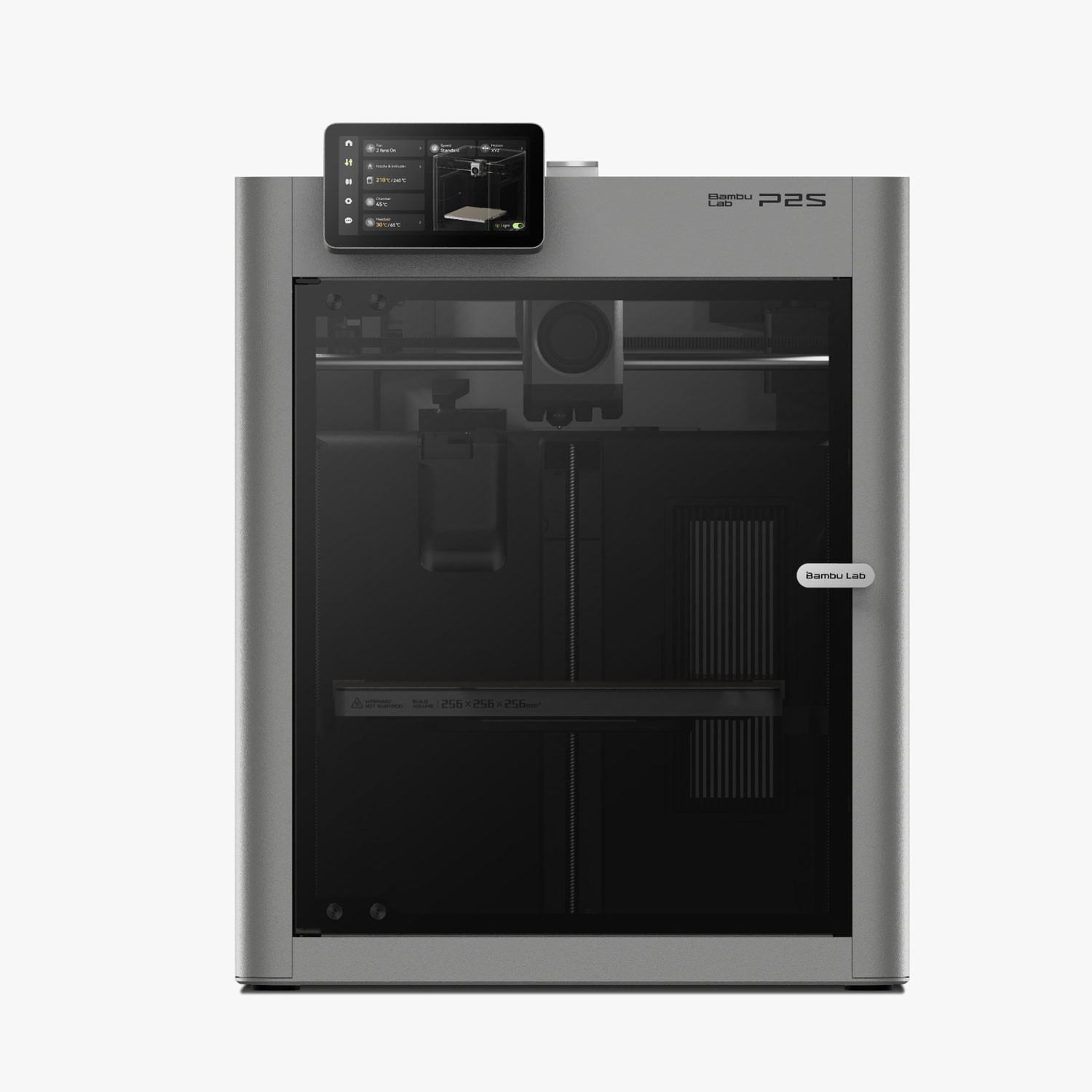
Bambu Studio is free. The settings above were shown on Bambu Lab printers: a P2S and an A1 in the smoother prints video and a P1S in the ironing video. Directory pages: Bambu Lab P2S, Bambu Lab A1 and Bambu Lab P1S.
Watch Planet 3DP on YouTubeBambu Studio updates, slicer tips and hands on tests every week.
SubscribeBambu Studio questions
What are the most important settings in Bambu Studio?
In his Bambu Studio 2.3 video, Nick names six: order of walls, wall loops, sparse infill density, sparse infill pattern, outer wall speed and supports. Turn on Advanced mode first or most of them stay hidden.
How do I get smooth 3D prints in Bambu Studio?
Set order of walls to Outer/Inner, slow the outer wall speed and use variable layer height on curved models. For flat tops, use ironing after you calibrate your filament.
What ironing settings should I use?
Nick’s answer is to test your own filament instead of copying someone else’s numbers. He prints a grid that tries 10 to 30 mm/s and 10 to 30% flow. His PETG came out best at about 25 mm/s and 10% flow, but your filament may land somewhere else.
Does variable layer height make prints slower?
Less than a smaller layer height everywhere. It only uses thin layers on curves and detail, and keeps thicker layers on flat areas. Printing the whole model at a tiny layer height can double or triple the time.
Should I use tree or normal supports?
Try both and compare. On Nick’s helmet, tree supports used under 450 g against 1,300 g for normal supports, and 13 hours instead of over a day. Normal supports can be faster under a large flat overhang.
What top Z distance should I use for supports?
Nick uses about 0.23 to 0.25 mm, up from the 0.2 mm default, so supports come off more easily. Bambu Lab’s wiki says to stay around 0.2 mm when the interface is the same filament as the model, and to use 0 only with a dedicated support filament.
What is the latest version of Bambu Studio?
On October 26, 2026, Bambu Lab’s GitHub page listed 2.8.2.61 as the newest public release and 2.8.4 as the newest public beta.
- Planet 3DP video: The 6 Most Important Settings in Bambu Studio 2.3 (October 2025) (checked October 26, 2026)
- Planet 3DP video: 5 Easy Bambu Studio Settings for Smoother 3D Prints (December 2025) (checked October 26, 2026)
- Planet 3DP video: How To Get Glass Smooth 3D Prints (October 2025) (checked October 26, 2026)
- Planet 3DP video: How To Use Bambu Studio, Complete Beginner Tutorial (June 2024) (checked October 26, 2026)
- Planet 3DP video: 3D Print ANY Model At ANY Size (May 2025) (checked October 26, 2026)
- Planet 3DP video: A Look At The New Features in Bambu Studio 1.10 (November 2024) (checked October 26, 2026)
- Bambu Lab Wiki: Ironing (checked October 26, 2026)
- Bambu Lab Wiki: Variable Layer Height (checked October 26, 2026)
- Bambu Lab Wiki: Support (checked October 26, 2026)
- Bambu Lab Wiki: Brim Ears (checked October 26, 2026)
- Bambu Lab Wiki: Flow Dynamics Calibration (checked October 26, 2026)
- Bambu Lab Wiki: Flow Rate Calibration (checked October 26, 2026)
- Bambu Lab Wiki: Text Shape (checked October 26, 2026)
- Bambu Lab Wiki: Modifier Operation Guide (checked October 26, 2026)
- Bambu Lab Wiki: Cut Tool (checked October 26, 2026)
- Bambu Studio releases on GitHub (version and release dates) (checked October 26, 2026)
- MakerWorld: Ultimate Ironing Test, model 175615 (the test linked in Nick's video, since renamed) (checked October 26, 2026)

Host of Planet 3DP. I have been 3D printing for over four years, with tens of thousands of print hours across Bambu Lab, Anycubic, Creality, Elegoo and Snapmaker machines. Every video on this page is mine. Planet 3DP on YouTube.
Last checked October 26, 2026.